How to hide folder in Windows 11 or Windows 10
In addition to protecting folders with passwords, Folder Guard also allows you to hide folders and/or restrict access to them without creating individual passwords for each such folder. You can choose to hide a folder completely, or make it appear empty. You can also make a folder completely inaccessible, preventing someone from opening it, or make it read-only, that would allow the user to open and view the files within the folder, but prevent saving modifications back to the protected folder. Both folders and files can be protected with restrictions.
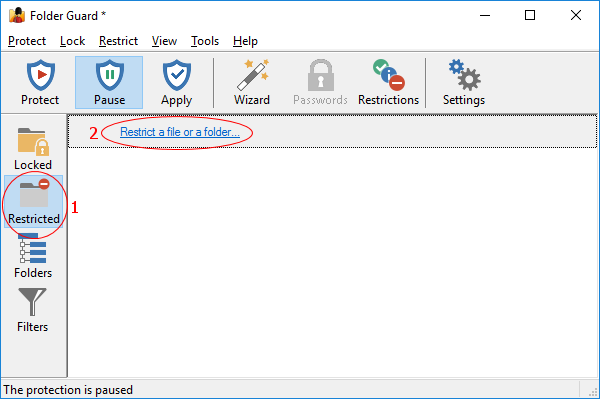
To set up such restrictions for a folder, switch to the Restricted screen of Folder Guard and click the Restrict a file or a folder link:
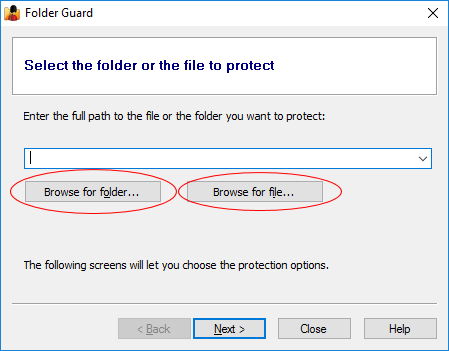
Press Next, and use the Browse for folder or Browse for file buttons to select the folder or the file that you want to restrict with Folder Guard:
After selecting a folder or a file, press Next again, and you should be able to select the desired visibility attribute for it:
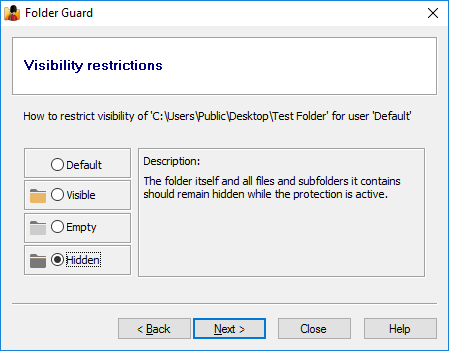
Visibility attributes:
 Hidden
 If assigned to a file or a folder, this attribute unconditionally hides the file or the folder itself (and all files and subfolders the folder may contain).
 Empty
Empty If assigned to a folder, this attribute leaves the folder itself visible in an Explorer window, but hides all files and subfolders contained therein, unless you have explicitly set a file or a subfolder of this folder to be visible. (This attribute cannot be assigned to a file.)
 Visible
 If assigned to a file or a folder, this attribute makes the file, or all files and subfolders contained in the folder, as well as the folder itself, to be visible in an Explorer window, as if Folder Guard were not present in the system.
In addition to the hidden attribute, it's also a good idea to protect the folder with the no access attribute as well, to make other users unable to open files from that folder even if they cannot see them (such as through the previously created shortcuts, for example). To do that, press Next, and select the No access restriction:
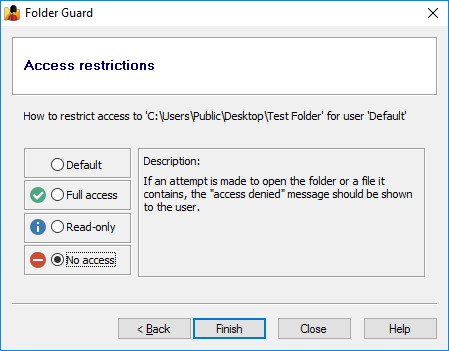
Access attributes:
 No Access
 If assigned to a file, this attribute prevents opening the file, (or running the file, if it is a program). If assigned to a folder, it prevents opening the files this folder or any of its subfolders contain, unless you have allowed access to the specific files or subfolders, by assigning different access attributes to them. This attribute also prevents saving any modifications to the file(s) into the same folder, creating, deleting, or renaming files or subfolders.
 Read-only
 If assigned to a file or a folder, this attribute allows opening the file, or files in the folder, so that the contents of the file(s) may be viewed by the user, but prevents saving any modifications to the file(s) into the same folder. It also prevents creating, deleting, or renaming files or subfolders. If assigned to a folder, this attribute applies to all files and subfolders under that folder, unless you have assigned different attributes to specific files and/or subfolders of that folder.
 Full access
 If assigned to a file, this attribute allows full access to it. If assigned to a folder, it allows for the full, unrestricted access to the folder itself, as well as to the files and subfolders it contains, unless specific files or subfolders have been restricted by you with their own access attributes. All operations, such as opening and saving files, renaming or deleting them, modifying their properties, etc., are permitted, as if Folder Guard were not present in the system.
To see the restrictions in action, resume the protection (or Apply the changes), and the folder you've made hidden should become invisible to Windows Explorer, Windows applications, MS-DOS programs, and the command prompt. If the folder contains any files or subfolders, they will be hidden, too, until you pause the protection.
If you did not select to hide the folder, but only selected the no access option, then the folder would be visible, but an attempt to open it would result in the Access denied or a similar message displayed by Windows. To allow access to such a folder, pause the protection. When done, resume the protection to make the folder inaccessible again.
The "default" attributes:
If you have not applied any restricting attributes to a folder, such a folder is considered to have the default attributes. (That's what most folders have initially, before you start setting up the protection.) The visibility of (and access to) such a folder is determined by the attributes of its parent folder: if the parent folder is restricted, its files and subfolders become restricted, as well, unless you have assigned different attributes to the files or subfolders, which would override the attributes inherited from the parent folder.
Using the folder tree of Folder Guard to set up the restrictions
Folder guard offers an alternative method of setting up the folder restrictions, which you may find more efficient if you need to restrict many different folders quickly. To use this method, switch to the Folders screen of the Folder Guard application, navigate to the folder you want to restrict, and then use the commands on the right-click menu:
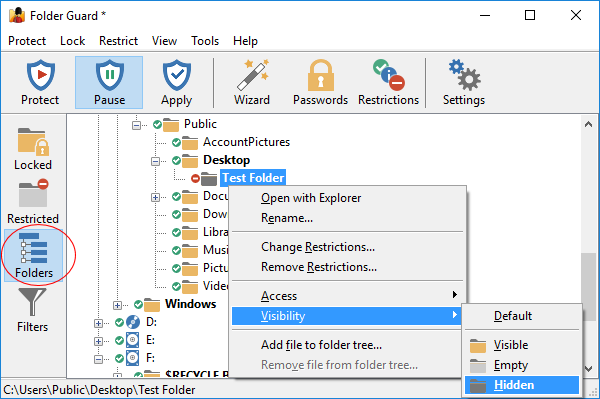
If you want to restrict a file this way, you need to use the Add file to folder tree command first, to make the file appear in the folder tree, and then use the right-click menu for the file, just as you would for the folder.
If you want to restrict a file or a folder on another computer on the same network, use the View - Add network location command first, to make the network location appear in the folder tree, then navigate to it and set up the restrictions just as you would for the local files and folders.
How do I make a hidden folder visible?
So you've hidden a folder, or restricted it in some other way, but now you want to use that folder yourself, without restrictions. Unlike the password-protected folders, you cannot temporarily unrestrict the individual files or folders, but you can pause all protection instead. To do that, you don't need to run the main program of Folder Guard every time you want to pause or resume the protection. Some of the quicker ways of doing that are:
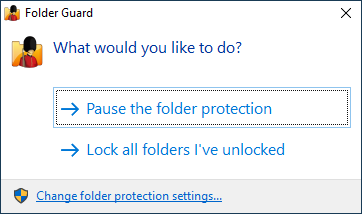
- Run Folder Guard from Start menu or from Desktop, and it should prompt you to pause the protection:
- Right-click on the notification icon of Folder Guard and use the commands on its menu:
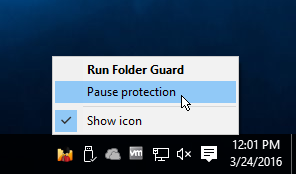
(If you don't see this icon, it means that you have either disabled the option to show the notification icon, or that your Windows taskbar is configured not to show all notification icons.)
- If you have set up a hot key of Folder Guard, you could press it to quickly display the prompt to pause or resume the protection, too.
When the protection is paused, all previously hidden folders become visible, and you can open the previously hidden files and work with them as usual. When done, use the same commands described above to Resume the protection, and the folder will become hidden again, until next time you need to see it.
Of course, if you want to make the folder visible permanently, and not hide it with Folder Guard anymore, you can do so by removing restrictions from the folder using the main Folder Guard application.
Hiding folders from the search or image cache
Some programs (such as Windows Search or various graphics viewers) store the information about the files from the hidden folders separately from the folders themselves, and that can make such information visible even though the folder itself is hidden. To solve this problem, you need not only hide the folder where your hidden files are (by assigning the hidden attribute to the folder with FolderGuard), but you also need to configure your search or image cataloging software not to index the contents of the folder you want to remain hidden.


More software: